

How to Check a Phone Display After Replacement: 12 Tests Before You Leave the Shop

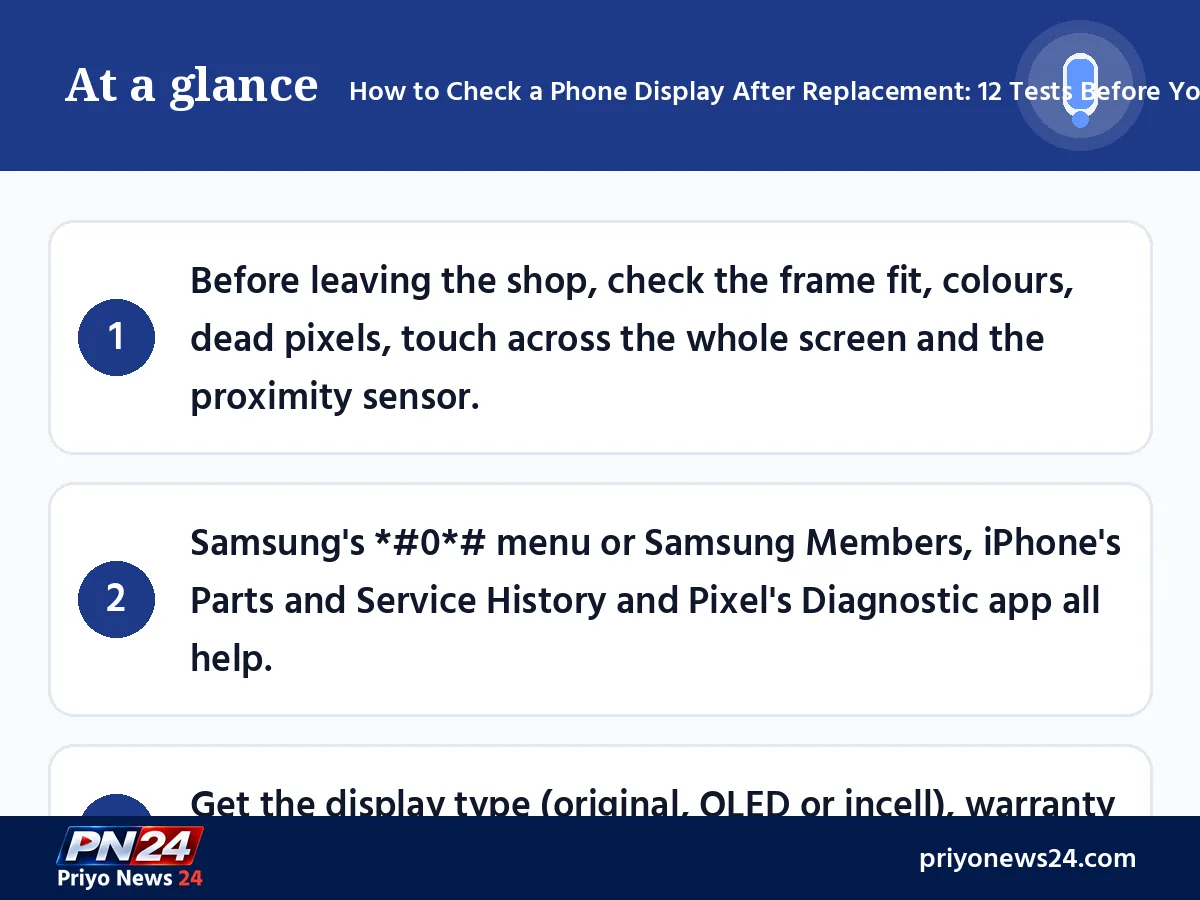
At a glance
- Before leaving the shop, check the frame fit, colours, dead pixels, touch across the whole screen and the proximity sensor.
- Samsung's *#0*# menu or Samsung Members, iPhone's Parts and Service History and Pixel's Diagnostic app all help.
- Get the display type (original, OLED or incell), warranty period and terms written on the receipt.
When a phone slips and the screen cracks, most people in Bangladesh get the display replaced at a nearby mobile market or service centre. The trouble often starts later: at home you find touch does not work in one corner, colours look washed out, the fingerprint reader is dead, or the screen stays on during calls. That is why it pays to know how to check a phone display after replacement and to spend 10-15 minutes testing before you leave the shop.
This checklist combines Apple's, Samsung's and Google's own support pages with reliable technology sites, updated as of November 2026. Prices are left out on purpose, because they change daily by model and market.
What to ask before the display is fitted
Clear up three things with the technician first, because they decide how you read the test results:
| Item | Why it matters |
|---|---|
| Display type: original, OLED copy or incell/LCD | Fitting incell to an AMOLED phone changes colour, battery use and in-display fingerprint support |
| With frame or panel only | A display with its frame usually fits better and is less likely to lift |
| Warranty length and what it covers | Whether dead touch, lines or loss of backlight are covered |
Have the display type, date and warranty terms written on the receipt. A verbal promise is hard to prove later.
12 tests to check a phone display after replacement
Visual checks
1. Fit and gaps: Tilt the phone towards the light and look for gaps, uneven edges or excess glue between the frame and the display. If pressing the edges makes a creaking sound or the glass moves, it is not seated properly.
2. Dust or bubbles under the glass: With the screen off, and then with a white image open, look for dust, marks or air bubbles under the glass.
3. Camera and speaker openings: Check that the front camera cut-out lines up and the earpiece is not covered. Make a call and confirm you can hear clearly.
Colour and dead-pixel checks
4. Five-colour test: Open full-screen white, black, red, green and blue images and look closely. A dot that stays black on every colour is a dead pixel; one stuck on a single colour is a stuck pixel. On a black screen at full brightness, check whether light leaks from the edges.
5. Even colour and ghosting: On a white screen, look for yellow, pink or green tints, uneven lighting or faint shadows of old apps (burn-in).
6. Brightness: Move the brightness slider from lowest to highest and check that light rises smoothly and the screen does not flicker at low brightness.
Touch checks
7. Draw across the whole screen: In a notes or drawing app, draw lines across, down and into all four corners. If a line breaks, touch is weak in that area.
8. Keyboard and edges: Type the edge letters on the keyboard (such as q, p, a, l) and use the navigation buttons or gestures several times. Drag an icon from one end of the screen to the other.
9. Multi-touch and ghost touch: Zoom into a photo with two fingers. Then leave the phone untouched for 1-2 minutes and see whether anything opens by itself (ghost touch).
Sensors and other checks
10. Proximity and light sensors: Make a call and hold the phone to your ear, or cover the top of the screen with your hand. If the screen turns off, the sensor works. Turn on auto brightness and move between light and dark to see if brightness adjusts.
11. Fingerprint and face unlock: If the phone has an in-display fingerprint reader, delete the old fingerprints, register again and unlock several times. These sensors usually work through an OLED panel, so they may not work with an incell or LCD replacement.
12. Heat and battery: Play a video for a few minutes and feel whether any part of the screen gets unusually hot. After 2-3 days at home, check in Battery settings whether the screen uses much more power than before.
The brands' own test tools
Samsung: On many Galaxy phones, typing *#0*# in the dialler opens a test menu with Red, Green, Blue and Black colour tests plus Touch, Sensor and Receiver tests. Samsung's own Samsung Members app also has Phone diagnostics under Support or Get help, which walks you through touch screen, sensor and other tests. If the code does not work on your model or region, use Samsung Members.
iPhone: Apple says displays that are not genuine or not installed properly can cause problems with multi-touch, True Tone, brightness and colour. On recent iPhones, Settings > General > About > Parts and Service History shows display repairs; a part that is not genuine or cannot be verified may show as "Unknown Part". After replacement, press and hold the brightness control in Control Center to check that True Tone is available.
Google Pixel: Google has released a Pixel Diagnostic app for newer Pixel models, which tests hardware including the display and touch. Pixel's help page also suggests removing the screen protector, restarting and testing in safe mode, so you can tell whether a touch problem comes from hardware or an app.
Other brands: On Xiaomi, Realme, Oppo, Vivo and other brands, searching settings for "diagnostics", "hardware test" or "CIT" often finds a built-in test menu. If not, the hands-on tests above are enough.
What to do if you find a problem
- Tell the shop right away: Show any problem before you leave and ask for the display to be refitted or replaced.
- Keep photos and videos: Record dead pixels, marks or ghost touch; they help with a warranty claim.
- Fit protectors and cases later: Finish the touch tests before a new screen protector goes on, or it becomes hard to tell where a problem comes from.
- Consider an official service centre: For an expensive phone, a brand-authorised service centre is the safer choice if you want original parts and a written warranty.
- Complaints about deception: If the receipt says "original" but you were given a copy, you can complain to the Directorate of National Consumer Rights Protection. Keep the receipt for this.
Final word
Checking a phone display after replacement is really a habit: look closely, test the colours, test touch across the whole screen, check the sensors and fingerprint, then get everything written on the receipt. Fifteen extra minutes at the shop saves repeat trips and extra cost later. Save this page and use it as a checklist the next time your phone goes in for repair.
Sources: Apple Support's pages on genuine iPhone displays and Parts and Service History, Samsung Support's guides to Samsung Members diagnostics and touchscreen issues, Google Pixel Help, GSMArena, and Dr.Fone's guide to Samsung test codes.
FAQ
How can I tell if touch works properly after a display replacement?
Open a notes or drawing app and draw long lines across the whole screen with your finger, especially the four corners and edges. If a line breaks, or the screen reacts without being touched, there is a problem. On Samsung phones you can also dial *#0*# and run the Touch test.
How do I know if the display is original?
On an iPhone, Settings > General > About > Parts and Service History may show 'Unknown Part' for a non-genuine display. On other phones, blacks that are not deep, washed-out colours, a slightly thicker screen or an in-display fingerprint reader that stops working can be signs of a copy or incell panel.
Why does the fingerprint reader not work after a new display?
Many phones have the fingerprint sensor under the display, and it usually works through an OLED/AMOLED panel. A cheaper incell or LCD replacement may not support it. Sometimes registering your fingerprint again fixes it.
How do I test for dead pixels?
Open full-screen white, black, red, green and blue images and look closely. A dot that stays black on every colour is a dead pixel; one stuck on a single colour is a stuck pixel. Samsung's *#0*# menu includes Red, Green, Blue and Black tests.
Is faster battery drain normal after a new display?
Lower-quality panels often use more power, especially incell displays fitted to AMOLED phones. Use the phone for 2-3 days and check the Battery section in Settings; if the screen uses far more than before, tell the shop.
Sources
- Apple Support — About genuine iPhone displays
- Apple Support — iPhone Parts and Service History
- Samsung Support — How to use diagnostics in the Samsung Members app
- Samsung Support — Troubleshoot touchscreen issues on a Samsung Galaxy device
- Google Pixel Help — Fix touch & response issues on your Pixel screen
- GSMArena — Google launches Pixel Diagnostic App and new repair manuals
- Dr.Fone — Check your Samsung screen using secret codes
Comments
No comments yet — be the first to comment.