

Laptop Battery Charging Rules: When to Charge, the 80% Limit and Whether to Keep It Plugged In

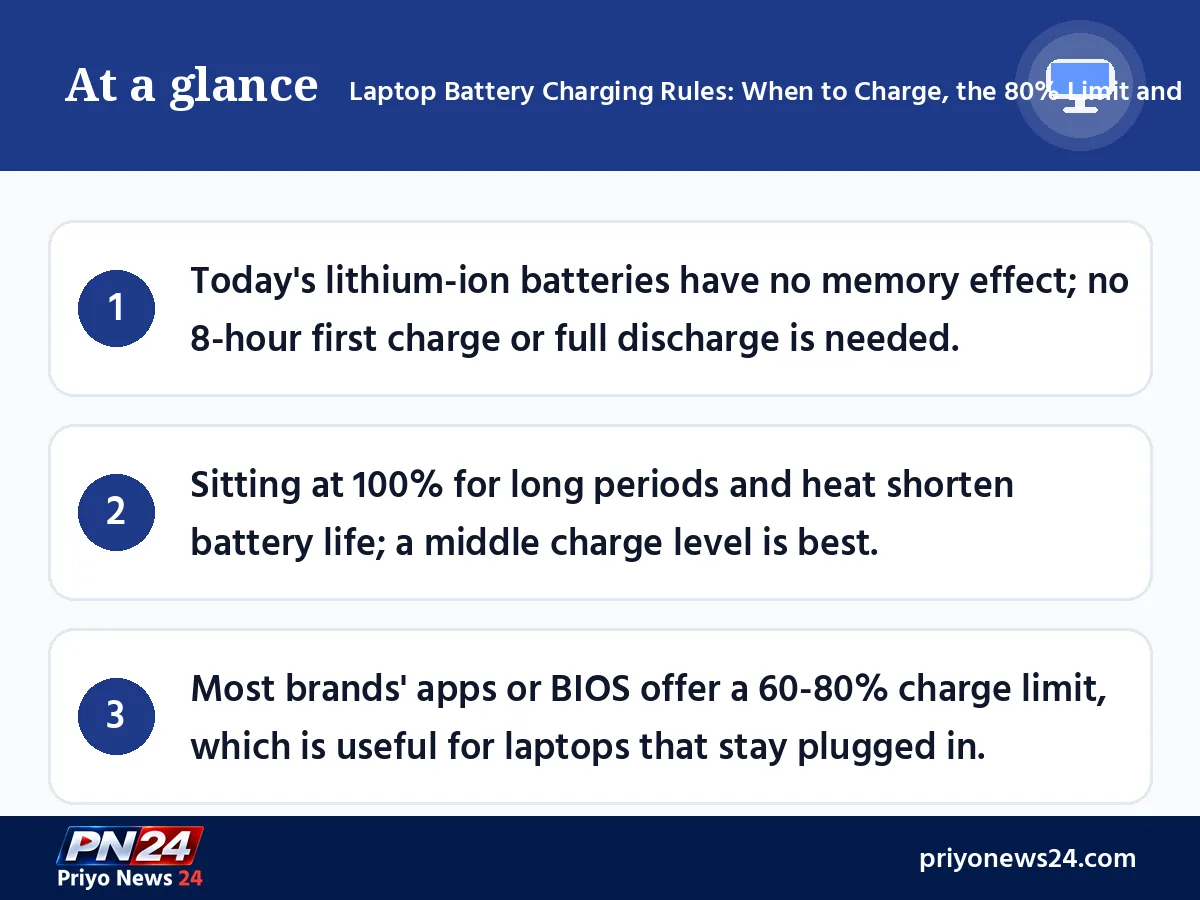
At a glance
- Today's lithium-ion batteries have no memory effect; no 8-hour first charge or full discharge is needed.
- Sitting at 100% for long periods and heat shorten battery life; a middle charge level is best.
- Most brands' apps or BIOS offer a 60-80% charge limit, which is useful for laptops that stay plugged in.
When you buy a laptop, the shopkeeper says "charge it for 8 hours the first time", a friend says "never charge until it's completely empty", and someone else warns "keep the charger plugged in and the battery will swell". Which is right? This guide combines the science of modern lithium batteries with manufacturers' guidance to explain, in plain words, the laptop battery charging rules: when to charge, how much, and which settings help the battery last longer.
If you want tips to make one charge last longer, read our guide on how to increase laptop battery backup. This article is mainly about charging habits and the battery's long-term lifespan.
How lithium batteries wear out: the key idea first
Almost every laptop today has a lithium-ion or lithium-polymer battery. As Battery University explains, these batteries lose life mainly for three reasons:
- Charge cycles: using the equivalent of 0 to 100% once is one cycle. The more cycles, the lower the capacity.
- Long periods at high voltage: 100% charge means the battery sits at its highest voltage; staying there day after day speeds up chemical wear.
- Heat: heat is a battery's biggest enemy. Full charge and heat together cause the most damage.
So the real trick is to keep the battery at a middle charge level and cool. The "memory effect" of old nickel-cadmium batteries does not exist in lithium batteries, so partial charging does no harm.
Laptop battery charging rules: 7 good habits
- A new laptop doesn't need a long first charge. Charge normally and start using it.
- Don't wait for zero. Plug in around 20%; repeatedly draining to 0-5% stresses the battery.
- You don't need 100% every day. For use at home or the office, 80% is enough; charge fully on days you go out.
- Turn on a charge limit if it stays plugged in all day. Brand-specific settings are listed below.
- Use the original or a quality charger. The charger that came with the laptop, or a branded one with the same wattage and voltage. For USB-C laptops, use a charger that supports Power Delivery.
- Avoid charging while hot. Don't charge it on a bed, pillow or blanket; leave room for air to flow. A cooling pad helps if it runs hot during heavy games or video editing.
- A monthly full cycle is optional. On some laptops an occasional full charge and discharge makes the percentage reading more accurate (calibration), but it doesn't extend battery life, so don't do it often unless needed.
Where to turn on a charge limit (80% limit)
Most big brands now offer a charge limit on their laptops. Option names and numbers can differ by model:
| Brand | Where to find it | Option name |
|---|---|---|
| Lenovo | Lenovo Vantage app > Power | Conservation Mode / Battery Charge Threshold |
| Dell | Dell Power Manager or Dell Optimizer, or BIOS | Primarily AC Use, Adaptive, Custom |
| HP | BIOS or HP power settings | Battery Health Manager |
| ASUS | MyASUS app > Battery Health Charging | Balanced (80%), Maximum Lifespan (60%) |
| Microsoft Surface and some Windows 11 devices | Settings > System > Power & battery | Smart charging |
Keep these points in mind:
- Lenovo's Conservation Mode stops charging at around 60% or 80% depending on the model. ThinkPads let you set your own start and stop thresholds.
- Dell's Primarily AC Use mode is made for laptops plugged in all day; Adaptive mode sets the limit itself based on how you use the laptop.
- Windows 11's Smart charging is not on every laptop. Microsoft says it appears only on supported devices and aims to extend battery life by keeping the charge below 100% based on your usage pattern.
- Setting a limit in more than one place (both the app and the BIOS) can leave the charge stuck at an unexpected number. Set it in one place only.
If your laptop stops at 80%, don't panic; it is probably this feature. Switch it off temporarily for a full charge before travelling.
Extra care for conditions in Bangladesh
- Load shedding and voltage swings: frequent power cuts make the laptop run on battery, which adds cycles; that is normal. To protect the charger from voltage swings, use a quality multi-plug with a surge protector.
- Hot season: rooms get very hot in summer. Charge the laptop on a hard, flat surface under a fan or in a cool spot.
- Cheap local chargers: a charger with the wrong voltage or poor quality can damage both the battery and the motherboard.
- Long storage: if you put the laptop away for weeks or months, leave it at about 50% charge and store it in a cool, dry place. A battery left at zero for a long time may stop taking a charge.
Checking battery health: the powercfg battery report
On Windows you can see how much the battery has worn, at no cost:
- Type cmd in the Start menu and open Command Prompt.
- Type powercfg /batteryreport and press Enter.
- It shows where the file was saved (usually battery-report.html in your user folder). Open it in a browser.
- Compare Design Capacity with Full Charge Capacity. For example, Design 50,000 mWh and Full Charge 40,000 mWh means the battery still holds about 80% of its original capacity.
- Check Cycle Count too if the report shows it.
If capacity has dropped a lot, the battery has swollen and lifted the touchpad or keyboard, or the charge suddenly drops in jumps, it is time to replace the battery. A swollen battery is dangerous: don't charge it, take it quickly to an authorised service centre and fit an original or equivalent battery.
Laptop battery problems: common signs and what to try first
- "Plugged in, not charging": first check whether a charge limit is on. If not, unplug both ends of the charger and reconnect, try another socket and restart the laptop. On USB-C laptops, a low-wattage phone charger often charges very slowly or not at all.
- Charge drops suddenly from 30% to 5%: this happens when capacity has fallen or calibration is off. Check the battery report; if capacity is fine, charge fully once, use it down normally and charge again.
- Laptop gets very hot while charging: check the vents for dust and have it cleaned at a service centre if needed. Reduce heavy work while charging.
- Charger gets hot, smells or has a cut cable: stop using it immediately and replace it; it is dangerous.
- Driver updates: keeping the BIOS and power drivers updated through Windows Update and the maker's support app (Dell SupportAssist, HP Support Assistant, Lenovo Vantage, MyASUS) fixes many charging problems.
Myths vs facts
| Common claim | The reality |
|---|---|
| You must charge for 8 hours the first time | Not needed for lithium batteries |
| Drain it fully before charging | The opposite: repeatedly draining to zero is harmful |
| Keeping it plugged in overcharges it | The circuit stops charging; the problem is long periods at 100% and heat |
| Charging overnight makes batteries explode | With a quality charger in a cool place the risk is very low, but never charge on a bed |
Final word
Laptop battery charging rules come down to three things: don't let it drop too low, don't leave it at 100% all the time, and keep it away from heat. If you work at a desk plugged in all day, turn on the charge limit in the manufacturer's app, and check the battery report once or twice a year. These small habits keep a battery healthy for years.
Checked against guidance from Microsoft, Dell and Battery University as of November 2026. App and BIOS option names can differ by model.
FAQ
How long should I charge a new laptop the first time?
Today's laptops use lithium-ion or lithium-polymer batteries, which have no memory effect like old nickel batteries. So the old rule of charging for 8 or 12 hours the first time no longer applies. Take it out of the box, charge it normally and start using it; the battery stops taking charge by itself when it is full.
Does keeping a laptop plugged in all the time damage the battery?
It doesn't overcharge, because the charging circuit stops at 100%. But lithium batteries slowly lose capacity when they sit fully charged and warm for long periods. If you work at a desk plugged in all day, it is better to keep a 60-80% charge limit switched on in the manufacturer's app.
At what percentage should I charge my laptop?
There is no strict rule. Battery University and other sources say partial charging does not harm lithium batteries; it is better to avoid draining to near zero repeatedly and leaving it at 100% for long. As a common practice, many people plug in around 20% and keep it up to 80% for daily use.
How do I check my laptop battery health?
On Windows, open Command Prompt, type powercfg /batteryreport and press Enter. A battery-report.html file is created; compare Design Capacity (capacity when new) with Full Charge Capacity (capacity now) to see how much the battery has worn.
Why is my laptop stuck at 80% and not charging further?
A charge limit is probably on in the manufacturer's app (such as MyASUS, Lenovo Vantage or Dell Power Manager) or the BIOS. It is not a fault but a battery-saving feature. If you need a full charge before a long trip, switch it off temporarily, charge to 100% and turn it back on afterwards.
Sources
- Microsoft Support — Use Smart charging in Windows
- Microsoft Support — Caring for your battery in Windows
- Battery University — BU-808: How to Prolong Lithium-based Batteries
- Dell Support — How to Improve the Performance of a Dell Laptop Battery
- XDA Developers — How to limit battery charge to 80% on Windows 11
- MakeUseOf — Never charge your laptop to 100% if you want the battery to last
- Windows Command Line — Powercfg batteryreport
Comments
No comments yet — be the first to comment.